 Lyslide
Start presenting
Browser to projector — no export, no second app
WhereThe "Present" chip at the top-right of the Preview heading.
Play opens YOUR console first — it does not take the screen. Sections or thumbnails on the left, the slide that is live in the middle, what comes next on the right. Put it on the wall when you are ready: F for full screen, or the output menu at the right of the status bar.
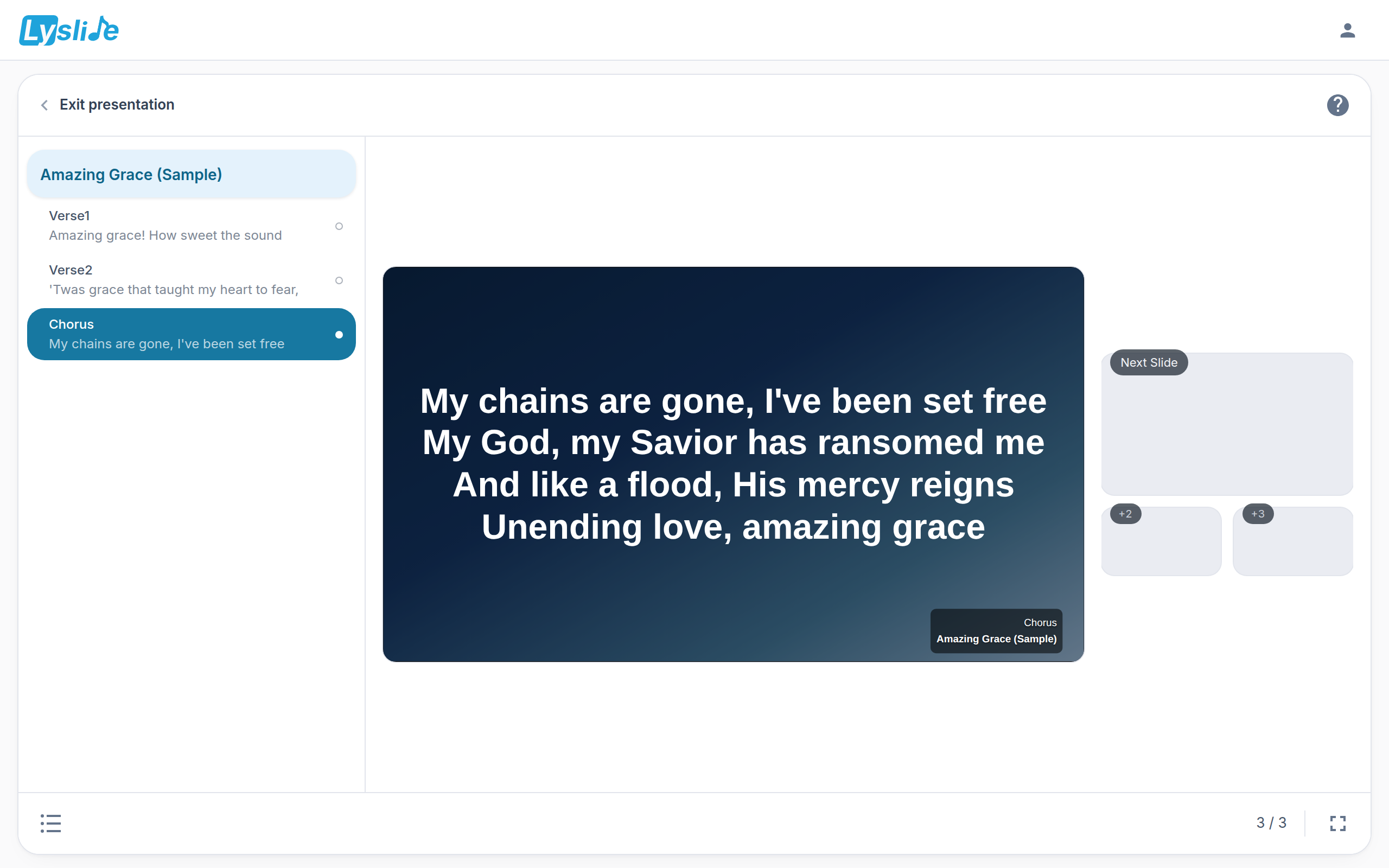
- Exit presentation — Top-left of the console, or Esc.
- Keyboard & remote — Every key, including what a presenter remote sends.
- Present — Full screen and second screen, both rows of this one menu. Nothing reaches the wall until you pick one.
Notes
- Presenting from the editor needs a window at least 1024px wide. Below that the chip explains itself and stays put — phones and portrait tablets present from a share link instead, which has no such limit.